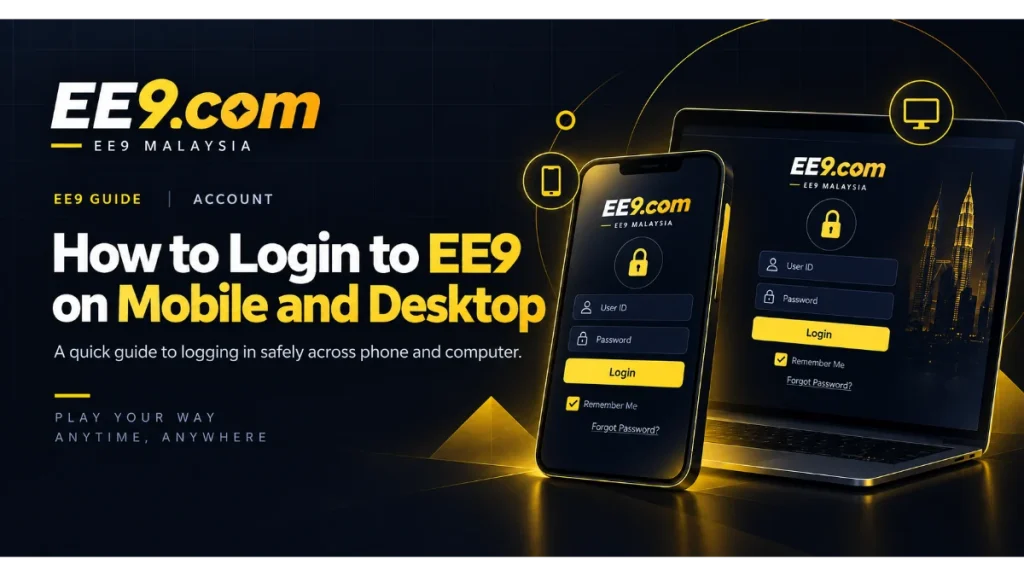
Signing in to EE9 should be a familiar, deliberate action: open the site you recognise, check the page address, and enter your own credentials privately. The controls may be arranged differently on a phone and a desktop screen, but the basic process is the same. These steps focus on safe access and practical checks rather than assuming a particular browser, app version, or login method.
the EE9 platform can be accessed across supported mobile and desktop browsers, while account sign-in should begin from the current access route.
Start from the official EE9 login route
Use the EE9 login page or navigate from the main EE9 site. Avoid signing in through shortened links or unexpected messages, even if the sender uses EE9 branding. A copied logo does not prove that a page is genuine. Checking the address before entering a password is a simple habit that prevents many mistakes.
If you use EE9 regularly, bookmark the page after you have confirmed it is correct. On a shared computer, do not leave the bookmark attached to an account profile that other people use. On mobile, keep your browser and operating system reasonably current so that security and page compatibility fixes are available.
Logging in from a mobile browser
Open your preferred browser, go to the EE9 site, and choose Login. The form should ask for the account identifier and password supported by the current system. Type both carefully. Phone keyboards can introduce capital letters, spaces, or autocorrect changes, so reveal the password only briefly when you are in a private place and the form provides a safe visibility control.
If the page appears too large, incomplete, or difficult to tap, check that desktop-site mode is not being forced. Return the browser zoom to its normal setting and rotate the phone only if that makes the current layout easier to use. The EE9 mobile access page also explains the available app or browser route without requiring you to install anything from an unknown source.
Do not allow a public phone or borrowed device to remember your credentials. When you finish, use the site sign-out control and close the browser tab. Clearing a password field is not the same as ending an authenticated session.
Logging in from a desktop or laptop
On a larger screen, the Login control is usually part of the main navigation or account area. Confirm the page, then enter the same account credentials you use on mobile. If your browser offers to save the password, accept only on a personal device protected by its own login. A password manager is preferable to storing credentials in an unprotected note or document.
Extensions that block scripts, rewrite pages, or route traffic through another location can sometimes affect a sign-in form. If the page behaves unexpectedly, test a private window or another current browser before changing your password. Turn extensions off only when you understand what they do, and re-enable the protections you normally use after testing.
Checks when your password is not accepted
Pause after one or two careful attempts. Confirm that Caps Lock is off, remove any accidental space, and make sure the account identifier belongs to EE9 rather than another service. If you recently changed the password, update any password-manager entry that still contains the old one.
Use the recovery option shown on the current login screen when you cannot remember the password. A legitimate recovery flow should not require you to reveal an existing password to another person. Follow the message sent to the contact method associated with your account, and type the new password only on the verified EE9 page.
If you have not registered yet, begin with the account registration guide instead of repeatedly trying possible credentials. Creating a second account is not a reliable solution when an existing account is temporarily inaccessible.
Protect the account while signing in
- Use a password that is unique to EE9 and long enough to resist guessing.
- Keep one-time or recovery codes private if the current login flow uses them.
- Decline remote-control requests from people offering to log in for you.
- Sign out after using a shared device and avoid saving the password there.
- Review unexpected account changes promptly through the official site.
Be cautious if someone asks for a screenshot of the complete login form. Images can reveal contact details, QR codes, passwords, or session information. When a visual is genuinely needed to explain a layout problem, crop or cover sensitive fields before sending it through an approved support route.
When to contact EE9 support
Contact support when the normal recovery route is unavailable, the account contact information is no longer accessible, or you see behaviour you do not recognise. Visit the EE9 support page to check the currently provided contact options. Explain what happened, the device and browser you used, and the exact message shown.
Do not include your password, one-time code, or complete transaction information. Support may need enough detail to identify the account and understand the issue, but your secret credentials should remain secret. Keep a record of the conversation through the available channel and return to the official login page when asked to retry.
A smooth login is mostly about consistency. Use the same verified route, keep the credentials under your control, and troubleshoot one variable at a time. That approach works on both mobile and desktop and makes unusual activity easier to notice.
After signing in successfully, take a second to confirm that the account screen is the one you expected. If you tested several browsers or devices, sign out of the sessions you no longer need. That small cleanup reduces confusion the next time you return and prevents an abandoned shared screen from staying connected.