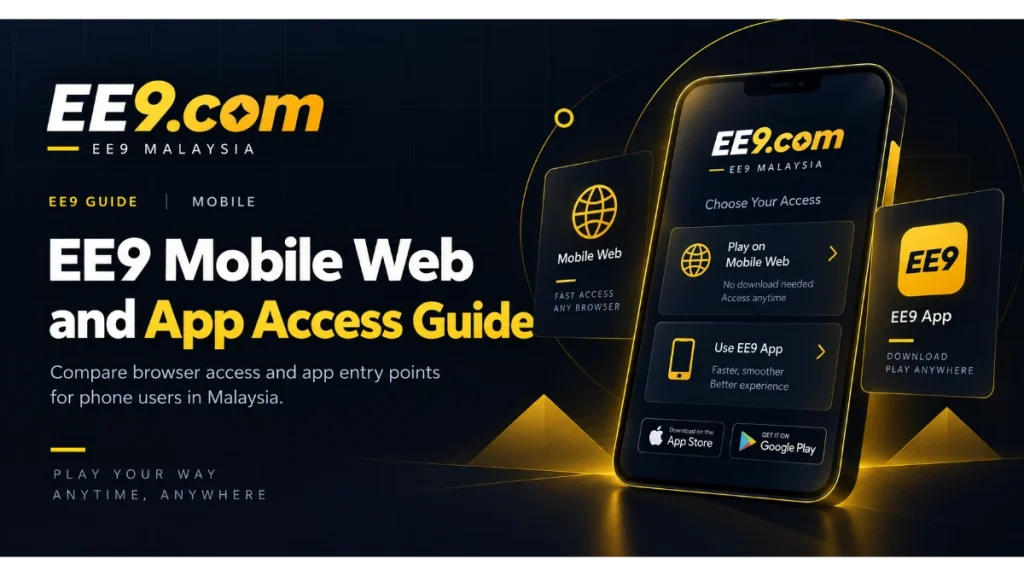
EE9 can be reached from a phone without turning the experience into a technical project. A current mobile browser is often the simplest route, while an app option may be available through the official EE9 page. The right choice depends on what is displayed for your device and how you prefer to manage updates, storage, and sign-in. This guide helps you make that choice and avoid unsafe downloads.
The EE9 Malaysia platform can be explored from mobile devices through the browser or app access route currently available.
Start with the official mobile access page
Open the EE9 mobile and app page directly from the site. It is the reference point for the access options currently offered. Do not assume that an installation file, store listing, or QR code found elsewhere belongs to EE9 simply because it uses the same name or visual style.
Before following an app route, check that the page address is correct and that the instructions match your phone. Mobile availability can differ by device or operating system. If no app option is shown, use the mobile website rather than searching for an unofficial copy.
Using EE9 in a mobile browser
A mobile browser requires no separate installation. Open a current browser, visit EE9, and navigate to the section you need. The main EE9 games page provides a starting point for browsing the available sections, while account actions remain on their dedicated pages.
Keep the browser updated through your device’s normal update process. If EE9 looks unusually small or incomplete, turn off forced desktop view, reset the page zoom, and reload. Private browsing can help test whether old site data is causing a display issue, although it may also forget your session when the window closes.
You can add the verified site to your home screen if your browser offers that feature. This creates a shortcut, not necessarily a native app. Give the shortcut a clear name and remove any older link that points to an address you no longer recognise.
Following an available app route
Use only the destination linked from the EE9 mobile page. Read each installation prompt before accepting it, especially when the phone asks for permissions or a change to security settings. Do not weaken device protection permanently to install a file whose source you cannot verify.
Once installed, launch the app from your normal app list and check that its screens and account routes are consistent with the EE9 site. Updates should come through the currently documented route. An unexpected message asking you to replace the app from a separate download deserves caution.
Review requested permissions in your phone settings. A permission should have a clear connection to a feature you intend to use. If the purpose is unclear, deny it initially and see whether the essential functions remain available. You can revisit the setting later.
Signing in safely on a phone
Use the EE9 login route reached through the verified web or app interface. Type the password where other people cannot observe the screen, and do not let a borrowed or public device remember it. If a one-time or recovery code is used by the current flow, keep that code private as well.
Biometric device access can protect the phone itself, but it does not replace a unique EE9 password. Keep the operating system lock enabled and avoid leaving an active EE9 session open when another person may use the device. Sign out through the account control instead of merely closing the screen.
Connection, storage, and display problems
If a page keeps loading, wait for a stable Wi-Fi or mobile-data connection before submitting again. Switching networks during login or another account action can interrupt the request. Avoid open public Wi-Fi for sensitive account use when you cannot assess the network.
For browser trouble, reload once, close unused tabs, and test another current browser. For an app, close it normally and reopen it; then check whether a current update is offered through the official route. Low device storage can also prevent updates or cause erratic behaviour, so free space using the phone’s own storage tools rather than an unfamiliar cleaner app.
When the problem continues, visit EE9 support and state whether you used mobile web or an app, along with the device and operating system. Describe the exact message and remove passwords, codes, and private notifications from any screenshot.
Mobile access checklist
- Navigate from the official EE9 site and confirm the address.
- Use a current browser or only the app route EE9 presently displays.
- Keep the phone locked, updated, and under your control.
- Review installation prompts and permissions instead of accepting everything.
- Sign out on shared devices and never share login or recovery codes.
Battery-saving and data-saving settings can sometimes pause background activity or delay a page. If EE9 stops while the phone switches apps, return carefully and confirm the current screen before repeating an action. Do not assume that a button press failed merely because the visual response was delayed.
Keep accessibility needs in mind as well. Browser text size, screen rotation, and system contrast settings can make controls easier to read. Make one adjustment at a time and verify the total or account action before confirmation, especially when a compact layout places controls close together.
The mobile website and an app are simply two ways to reach the same brand environment. Choose the route that is available, understandable, and secure on your device. When in doubt, return to the EE9 website rather than following a fresh link from an unknown sender.